Welcome to Destiny’s user guide!
Destiny is your personal secretary, and will help you to manage your tasks, track your progress on them, and delete them. All this happens while it automatically saves the tasklist just in case your computer crashes.
Here’s the full list of features (and commands) that comes with Destiny:
- Displaying the tasks in the task list
- list
- find
- Progress tracking
- mark
- unmark
- Adding tasks to the task list
- todo
- deadline
- event
- Removing specific tasks
- delete
- Exiting
- bye
Displaying tasks
Currently, you can either list out all tasks or display specific tasks you want to find.
List
Simply lists out all tasks in the task list.
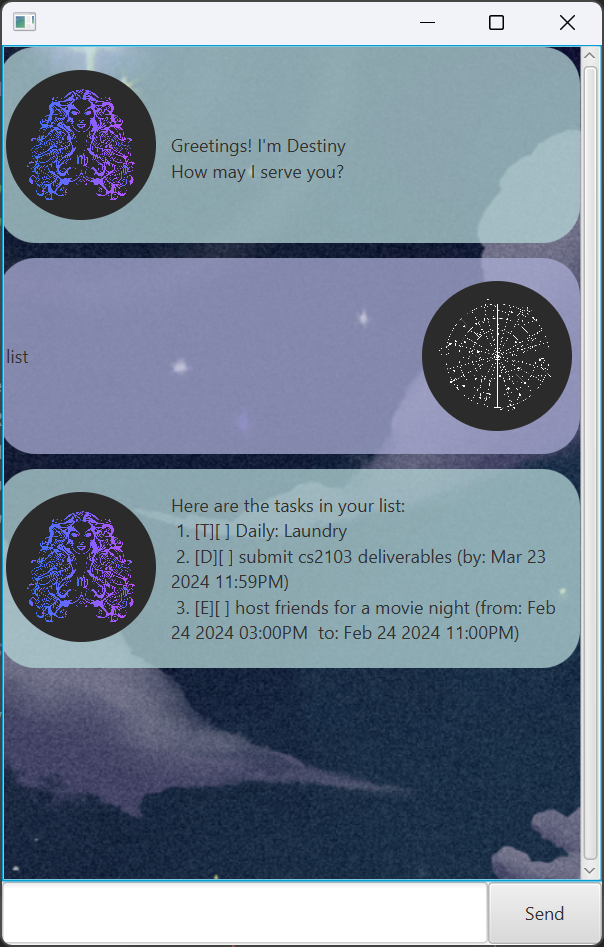
Format: list
Destiny then prints out all the tasks for you.
Here are the tasks in your list:
 1. [T][ ] Daily: Laundry
 2. [D][ ] submit cs2103 deliverables (by: Mar 23 2024 11:59PM)
 3. [E][ ] host friends for a movie night (from: Feb 24 2024 03:00PM  to: Feb 24 2024 11:00PM)
Find
List tasks which are named similarly to the one you’re trying to find.
Format: find [(partial) name of task]
Example: find laundry or find laund
Destiny then prints out all the tasks it has found that matches the description you have provided.
Here are the matching tasks in your list:
1. [T][ ] Daily: Laundry
Progress Tracking
We can track the progress of tasks by marking or un-marking them.
Mark
Marks a task as done. The task marked will follow the index indicated when
using the list command
Format: mark [index]
Example: mark 1
After the command, the task will be visibly marked with a cross.
Nice! I've marked this task as done:
  [T][X] Daily: Laundry
Unmark
Marks a task as not done. The task unmarked will follow the index indicated when
using the list command
Format: unmark [index]
Example: unmark 1
After the command, the task will be unmarked, and the cross will be removed.
OK, I've marked this task as not done yet:
  [T][ ] Daily: Laundry
Adding Tasks
Destiny supports three types of tasks:
- ToDo
- Basic task with a description
- Deadline
- Task with a specified deadline
- Event
- Task with a specified timeline
ToDo
Creates a ToDo task.
Format: todo [description]
Example: todo Get 7 hours of sleep
Displays the new task you have added to the task list.
Got it. I've added this task:
   [T][ ] Get 7 hours of sleep
Now you have 4 tasks in the list.
Deadline
Creates a Deadline task.
Format: deadline [description] /by [date & time]
Example: deadline create notes for finals /by 27/02/2024 2359
Displays the new task you have added to the task list.
Got it. I've added this task:
   [D][ ] create notes for finals (by: Feb 27 2024 11:59PM)
Now you have 5 tasks in the list.
Event
Creates an Event task.
Format: event [description] /from [date & time] /to [date & time]
Example: event recess week /from 24/02/2024 0000 /to 03/03/2024 2359
Displays the new task you have added to the task list.
Got it. I've added this task:
   [E][ ] recess week (from: Feb 24 2024 12:00AM  to: Mar 03 2024 11:59PM)
Now you have 6 tasks in the list.
Removing tasks
Destiny allows you to delete certain tasks with the delete command.
Delete
Deletes the task specified by you. The task deleted will follow the index indicated when
using the list command
Format: delete [index]
Example: delete 6
The task deleted is then displayed.
Noted. I've removed this task:
   [E][ ] recess week (from: Feb 24 2024 12:00AM  to: Mar 03 2024 11:59PM)
Now you have 5 tasks in the list.
Exiting Destiny
Once you are done interacting destiny, bid farewell to destiny by saying bye
and it’ll wrap up things and close itself.
Bye
Destiny will begin closing upon this command.
Format: bye
Destiny then replies with the following message before closing.
It's been nice chatting with you!.
Hope to see you again soon!